> ## Documentation Index
> Fetch the complete documentation index at: https://moonshot.app/llms.txt
> Use this file to discover all available pages before exploring further.
# Syncing with text nodes
> Populate text nodes with text generated by AI
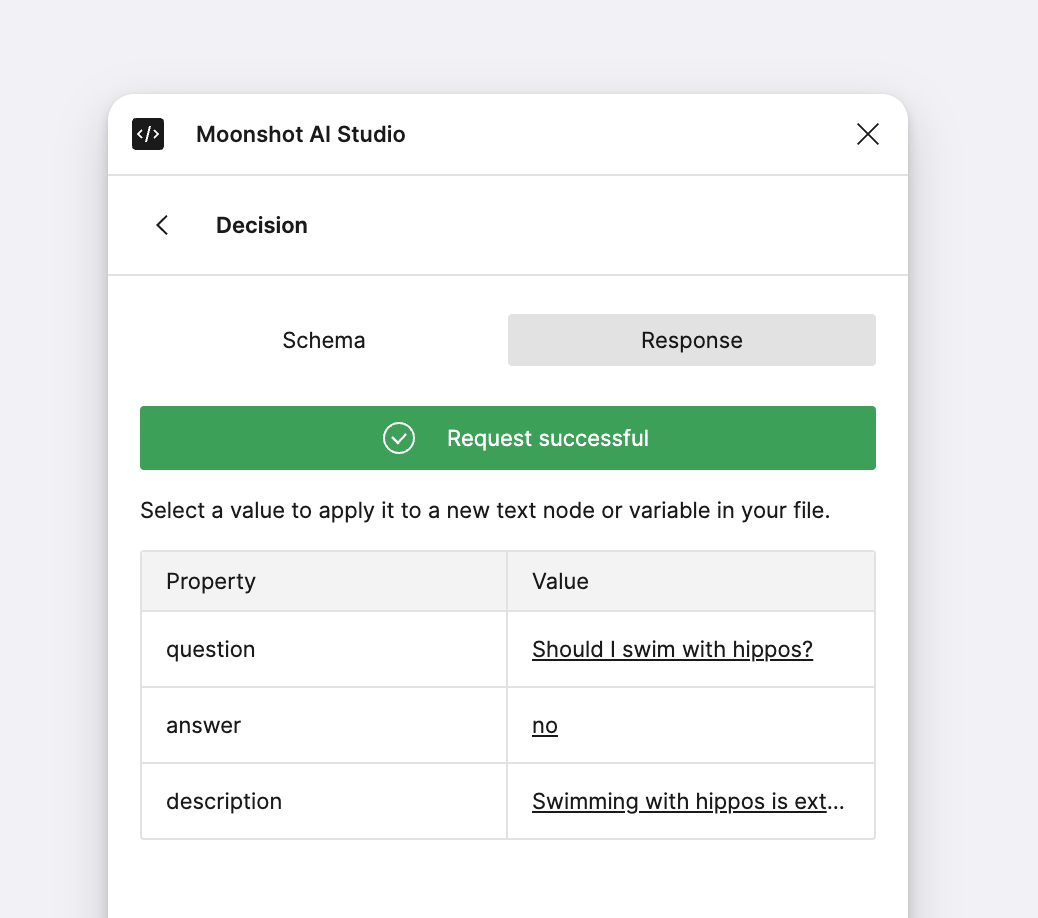
You can sync response data with text nodes in your design once you've made a successful request. To get started, you can either select a text node in your design or click on "View response" and then click on a value (shown below).
 ### Syncing data with text nodes
After selecting a text node in your design or clicking a response value, fill out the remainder of the fields and click "Sync". Any new responses will now populate this text node with the property value you applied.
### Syncing data with text nodes
After selecting a text node in your design or clicking a response value, fill out the remainder of the fields and click "Sync". Any new responses will now populate this text node with the property value you applied.
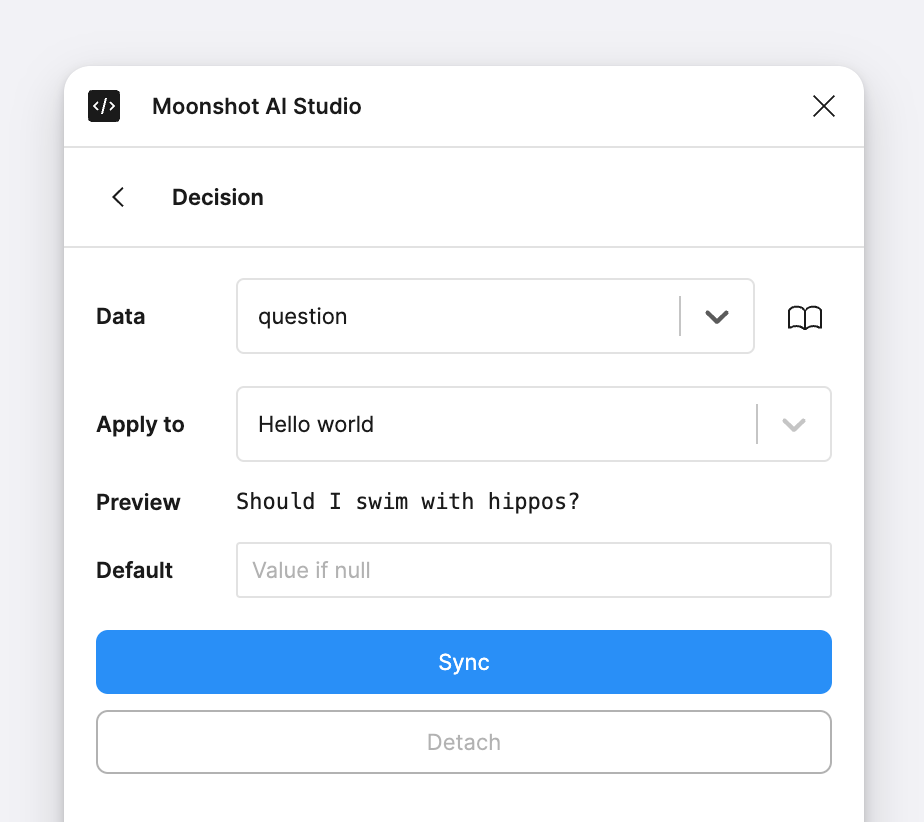 You can optionally add default text top account for any responses that return a null value.