> ## Documentation Index
> Fetch the complete documentation index at: https://moonshot.app/llms.txt
> Use this file to discover all available pages before exploring further.

# Quickstart

> Make your design respond to AI in a few minutes

### Prerequisites

These are required for Moonshot AI Designer.

1. A [Figma account](https://www.figma.com/)
2. An [OpenAI API key](https://platform.openai.com/api-keys)

### Get setup and sync response data

<Steps>
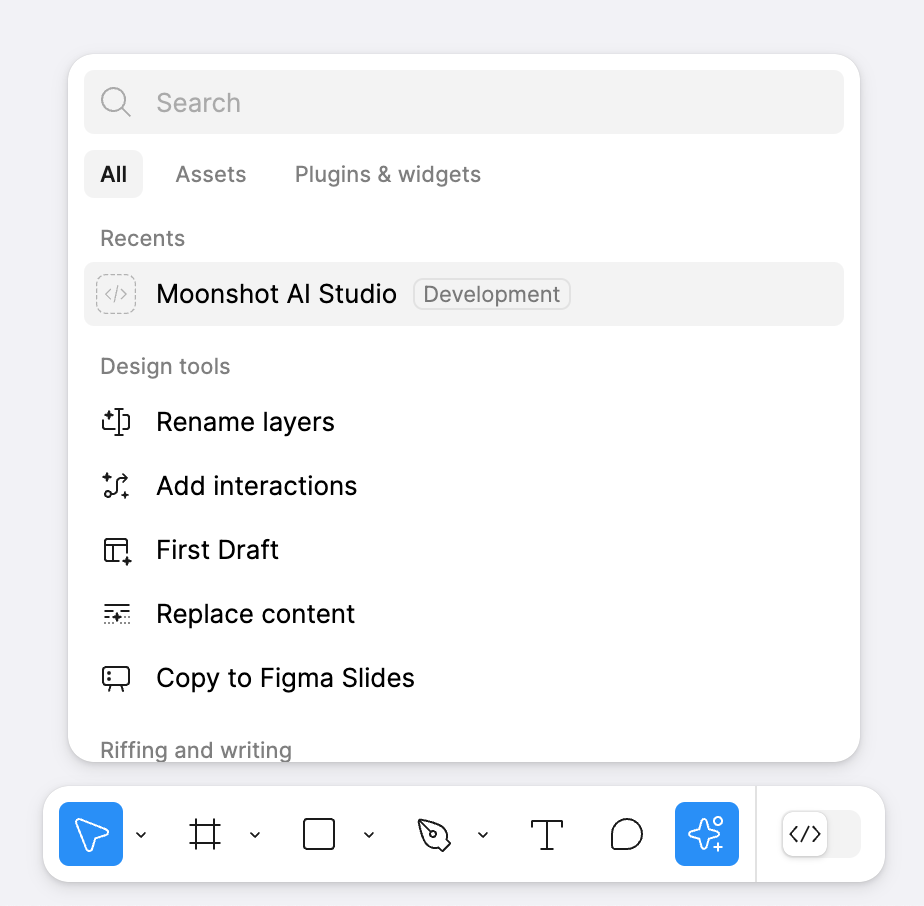
  <Step title="Open Moonshot AI Designer">
    This plugin is available via the actions menu bar (pictured below) and the [Figma community](https://www.figma.com/community/plugin/1456738795623637101).
    <Frame>
      <img width="400px" src="https://mintcdn.com/thinklikellc/yUQYyXEaEJymQjZO/images/quickstart-run-plugin.png?fit=max&auto=format&n=yUQYyXEaEJymQjZO&q=85&s=d0c5c45613ba52473de461a39086a8b6" data-path="images/quickstart-run-plugin.png" />
    </Frame>

    <br />
  </Step>

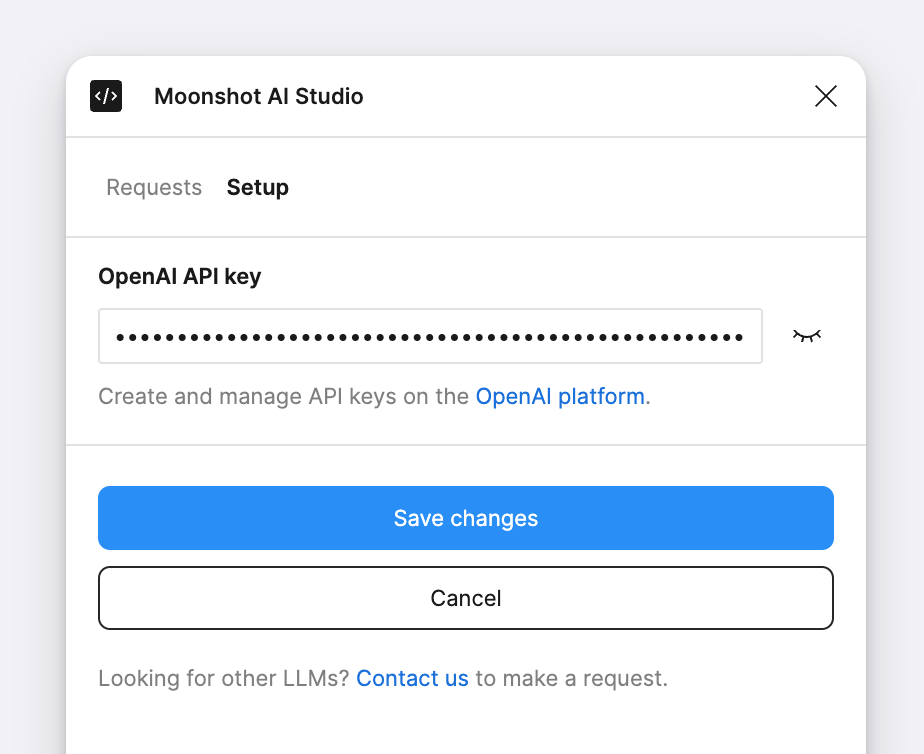
  <Step title="Add your OpenAI API key">
    Navigate to the Settings tab and add the API key you generated in your OpenAI account. Make sure to click "Save changes".
    <Frame>
      <img width="400px" src="https://mintcdn.com/thinklikellc/yUQYyXEaEJymQjZO/images/quickstart-api-key.png?fit=max&auto=format&n=yUQYyXEaEJymQjZO&q=85&s=f8920a658fd0cdce83dbe5c548afc0d3" data-path="images/quickstart-api-key.png" />
    </Frame>

    <br />
  </Step>

  <Step title="Make a request">
    Enter a prompt and click "Make request". You can also use the **⌘ CMD** plus **↵ Enter** key combination to make requests.
  </Step>

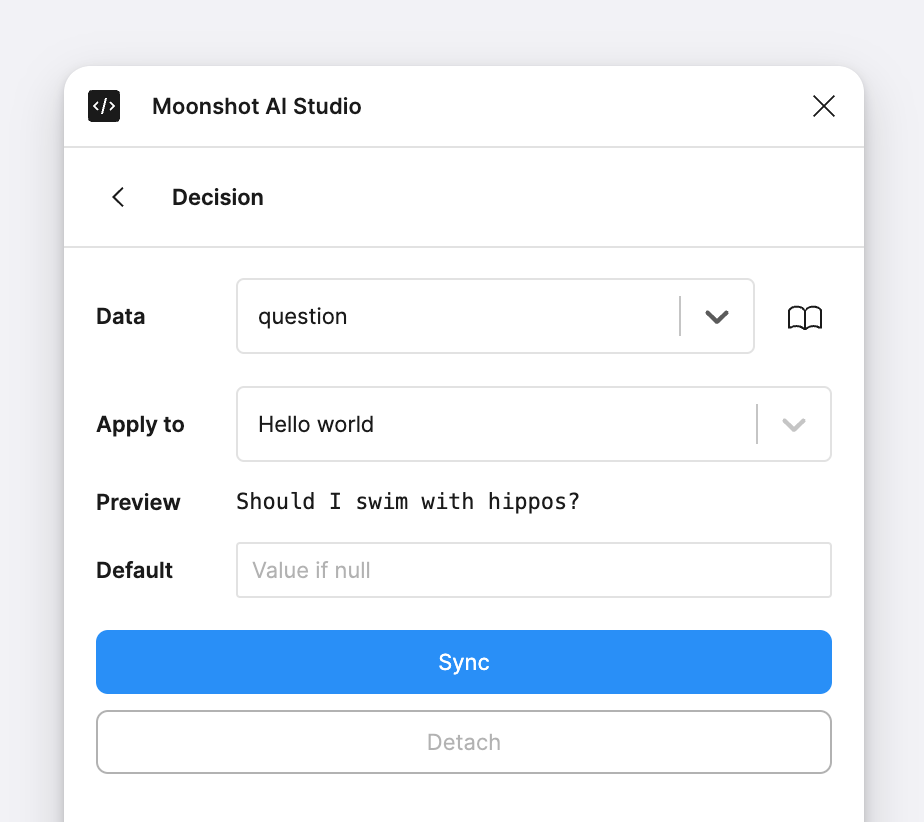
  <Step title="Sync data to a text node">
    Click on a text node in your file and select the value you want to sync to it. You can also click on "View response" from the main Reqeusts view and then click on a response value.

    Once synced the text node will update with new data after making additional requests.
    <Frame>
      <img width="400px" src="https://mintcdn.com/thinklikellc/yUQYyXEaEJymQjZO/images/quickstart-sync-text.png?fit=max&auto=format&n=yUQYyXEaEJymQjZO&q=85&s=22e0046f5983a660e2a34421c4ad4eb4" data-path="images/quickstart-sync-text.png" />
    </Frame>

    <br />
  </Step>
</Steps>

## Design even richer AI products

Learn the core concepts behind designing AI products with Moonshot AI Designer.

<CardGroup>
  <Card title="Defining schemas" icon="code" href="/basics/defining-schemas">
    Structure response data to ensure predictable formatting.
  </Card>

  <Card title="Making requests" icon="rotate" href="/basics/making-requests">
    Request an API response based on your prompt.
  </Card>

  <Card title="Syncing with text nodes" icon="text" href="/basics/syncing-with-text-nodes">
    Map response data to text nodes in your design file.
  </Card>

  <Card title="Syncing with variables" icon="square-x" href="/basics/syncing-with-variables">
    Map response data to variables that can be read by components.
  </Card>

  <Card title="Working with components" icon="diamonds-4" href="/basics/working-with-components">
    Make the components in your design respond to AI.
  </Card>

  <Card title="Working with auto layout" icon="objects-column" href="/basics/working-with-auto-layout">
    Ensure your design handles various amounts of information.
  </Card>
</CardGroup>
